


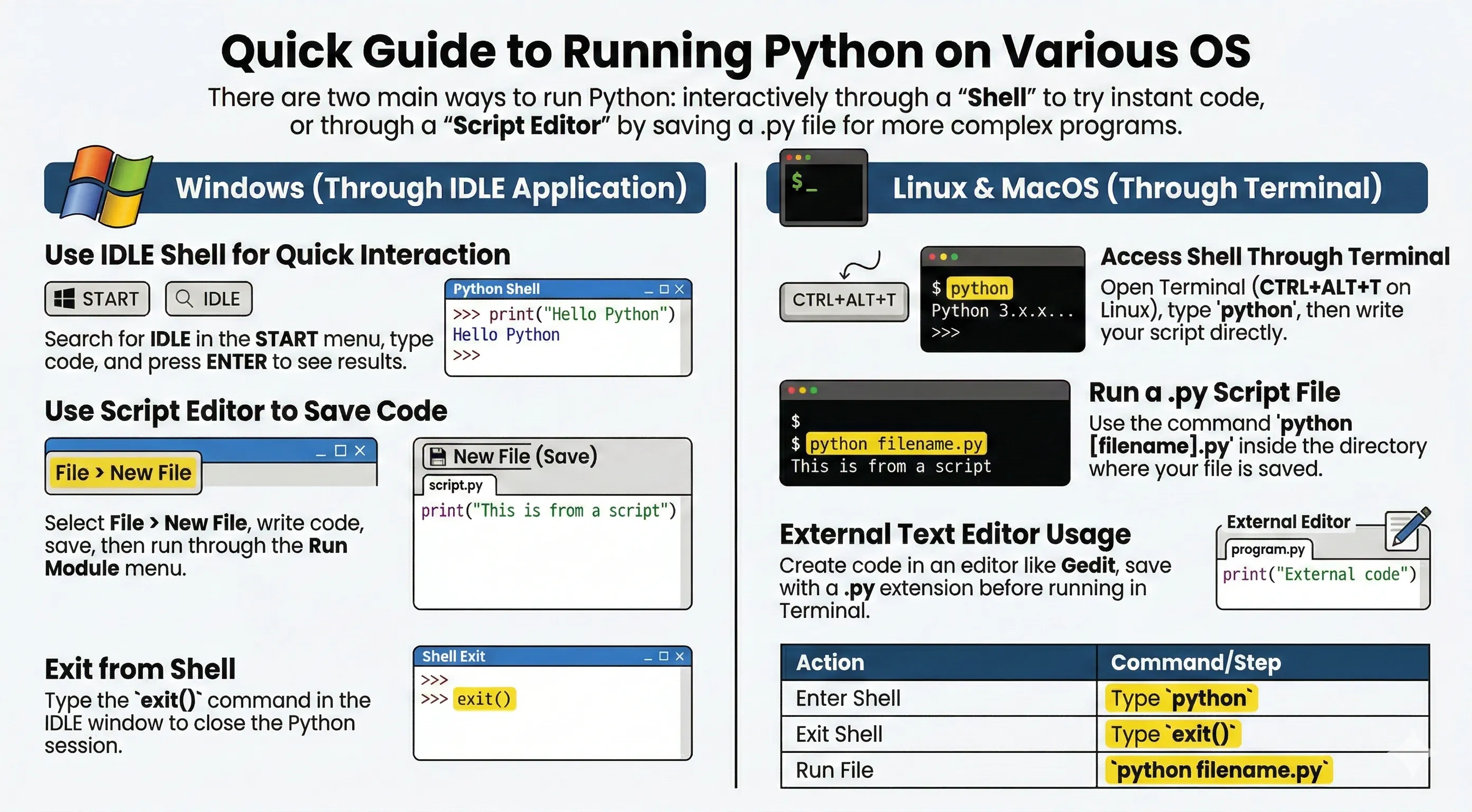
Python can be run in three common ways:
- Interactive mode (REPL) for quick experiments.
- Script mode for running
.pyfiles. - One-off commands with
python -cfor running a short snippet directly from the terminal.
Note: You can also run and edit Python code directly on this website in every code snippet interactively.
Quickstart (By OS)
Linux / macOS
-
Open Terminal.
-
Check Python is installed:
python3 --version -
Start interactive mode (REPL):
python3 -
Run a script file:
python3 hello.py
Windows
-
Open PowerShell or Command Prompt.
-
Check Python is installed (try one of these):
py --version # or python --version -
Start interactive mode (REPL):
py # or python -
Run a script file:
py hello.py
# or
python hello.py
Run Python Interactive Mode (REPL)
Start Python:
# Linux/macOS
python3

# Windows (recommended if available)
py
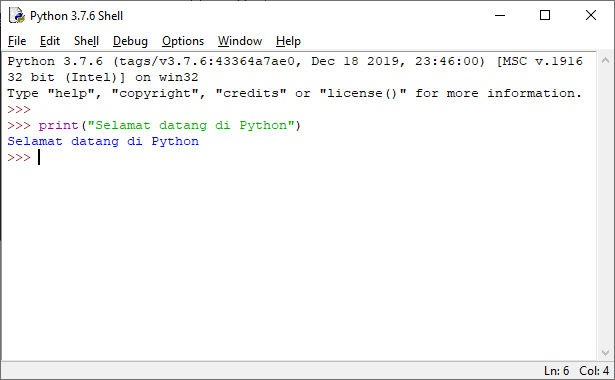
You will see the >>> prompt. Example:
>>> print("Welcome to Python")
Welcome to Python
>>> 2 + 3
5
>>> is the REPL prompt, not part of Python syntax. Do not type >>> into a .py file or the website code editor.
Use this version in files/editors:
print("Welcome to Python")
print(2 + 3)
Exit REPL with:
exit()- Ctrl+D (Linux/macOS)
- Ctrl+Z then Enter (Windows)
Run Python Script File
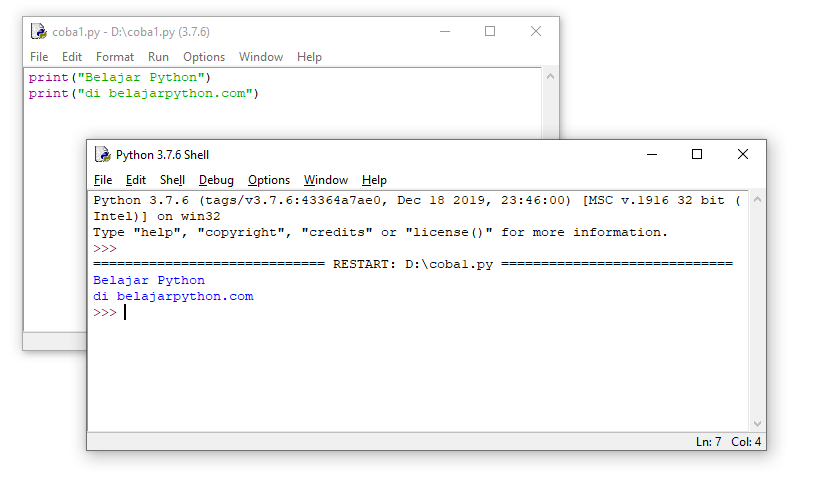
Create hello.py:
print("Learn Python")
print("at belajarpython.com")
Run it from terminal:
# Linux/macOS
python3 hello.py

# Windows
py hello.py
# or: python hello.py
Optional: Run with IDLE on Windows
If you prefer a GUI editor:
- Open IDLE (Python 3.x) from the Start menu.
- Use the shell window for quick commands (
>>>). - For script files, click File > New File.
- Save the file as
.py, then run it with Run > Run Module (F5).
Command-Line Arguments
Python passes command-line arguments through sys.argv:
import sys

print("Script name:", sys.argv[0])
print("Arguments:", sys.argv[1:])
Run:
# Linux/macOS
python3 app.py one two

# Windows
py app.py one two
Other Ways to Run Python
Python has a few useful command-line options:
Note: In the examples below, replace
pythonwithpython3on Linux/macOS, orpyon Windows.
-
Run a short command:
python -c "print('Hello from -c')" -
Run a module as a script (recommended pattern):
python -m pip --version python -m venv .venv python -m http.server 8000 -
Run a script and stay in interactive mode afterwards:
python -i app.py
Tip: On Windows, the
pylauncher can select a specific version:
py -3.13 --version
py -3.13 -m pip --version
Interactive Editing and History
In many terminals, the REPL supports command history and basic editing:
- Previous commands: Up/Down arrow
- Move cursor in line: Left/Right arrow
Executable Scripts (Unix-like)
You can make a script directly executable:
#!/usr/bin/env python3
print("Hello from executable script")
Then:
chmod +x hello.py
./hello.py
Source File Encoding
Python 3 uses UTF-8 by default. You can still declare encoding explicitly.
The encoding cookie must be on the first or second line of the file. If you use a shebang, put the encoding cookie on line 2:
#!/usr/bin/env python3
# -*- coding: utf-8 -*-
name = "learn python"
print(name)
Without a shebang, you can keep it on the first line:
# -*- coding: utf-8 -*-
name = "learn python"
print(name)